Smart TV Hardening
Replaces: Default smart TV (ads, ACR, telemetry, microphone)
Disable ACR tracking and telemetry, block TV domains at the DNS level, or turn your smart TV into a dumb display.
Sources
- github.com/Perflyst/PiHoleBlocklist/blob/master/SmartTV.txt
- maikelvanesdonk.blog/2026/04/09/pi-hole-smart-tv-ads/
- clipnotebook.com/blog/smart-tv-privacy-for-engineers
- securetoolsguide.com/secure-smart-tv-privacy-guide/
- zdnet.com/home-and-office/home-entertainment/how-to-turn-off-hdmi-cec-on-your-tv/
Phase
Home Network — router access, 30-90 min
General
**Level 1 — Settings Lockdown (5-15 min, no install):**
Walk through every privacy-related setting on your TV and set them to the most restrictive option. This is reversible and non-destructive.
1. Disable ACR / "Viewing Information" / "Live TV Recognition" — the core surveillance feature. Called different names per brand:
- Samsung: Settings → General → Smart features → "Voice recognition services" OFF + Settings → Support → "Terms and Conditions" → disable "Viewing Information Services"
- LG: Settings → General → System → "Live Plus" OFF + Settings → General → "AI Service" → disable "AI Brightness" and voice features
- Sony/Android TV: Settings → Preferences → "Viewing data in Live TV" OFF
2. Disable personalized ads / "Interest-based ads" in every section
3. Disable diagnostics / "Send usage data" / "Help improve our products"
4. Disable voice assistant features (if unused) — and disable the microphone at the hardware level if your TV has a physical mic switch
5. Disable HDMI-CEC device tracking — some TVs log which HDMI devices you use and for how long via device metadata
6. Disable "Auto Play" on the home screen (reduces ad impressions and bandwidth)
7. Decline or revoke any "AI service terms" pop-ups — LG's terms include a clause holding you responsible for notifying guests of microphone recording
8. Check for and disable any pre-installed tracking apps (Samsung, LG, Roku all pre-install ad/telemetry apps)
9. Disable Wi-Fi if you only use HDMI inputs (most extreme Level 1 — TV becomes a display)
Verify: after changing settings, restart the TV and check if any settings reverted (some manufacturers reset them on reboot). Check again after every firmware update.
**Level 2 — DNS Blocklist for Your TV (30-60 min, requires router/DNS access):**
Settings can be silently re-enabled by firmware updates. DNS blocking persists regardless of firmware changes — the TV can't phone home if the domain doesn't resolve.
1. Identify your TV's IP address (check router DHCP table or TV network settings)
2. Create a DNS group for the TV in your DNS resolver (AdGuard Home, Pi-hole, NextDNS):
- AdGuard Home: add the TV to a "smart-tv" client group with a dedicated blocklist
- NextDNS: create a "TV" profile and assign it to the TV's IP
- Pi-hole: create a group and apply per-group blocklists
3. Add TV-specific blocklists:
- General smart TV: Perflyst SmartTV.txt (github.com/Perflyst/PiHoleBlocklist)
- Samsung: mboutolleau/block-samsung-tv-telemetry
- LG: samsapti/LG-webOS-Blocklist or sonodima/webos-unclutter
- Broad: hagezi/dns-blocklists (use the "smart TV" category)
4. Block hardcoded DNS bypass: many TVs hardcode Google DNS (8.8.8.8) to bypass your resolver. Fix with a firewall NAT redirect rule:
- OpenWrt: redirect port 53 from TV's IP to your DNS server
- pfSense/OPNsense: NAT port forward for TCP/UDP 53 from TV IP
5. Block DoH (DNS-over-HTTPS) bypass: some newer TVs use DoH to evade DNS blocking. Block port 443 to known DoH endpoints (cloudflare-dns.com, dns.google) from the TV's IP. Most TVs still use plain DNS, so this is secondary.
6. Optionally isolate the TV on its own VLAN (Phase 5 — network-segmentation card) so it can't reach other devices on your LAN.
Verify: after applying the blocklist, open the TV's smart features and check if ads disappear from the home screen. Use `pihole -t` or AdGuard Home query log filtered by TV IP to see blocked vs allowed queries. Streaming apps should still work — if one breaks, allowlist that specific service's domains, not the entire blocklist.
**Level 3 — Dumb Display + Kodi / External Box (2-4h, needs hardware):**
Stop using the smart TV platform entirely. The TV becomes a display; all intelligence moves to a device you control.
1. Disconnect the TV from your network entirely (remove Wi-Fi credentials, unplug Ethernet)
2. Connect a device you control via HDMI:
- Kodi on a Raspberry Pi 4 (FOSS, ~$100 with case + power + SD card): full media center with add-ons for streaming, local file playback, live TV via IPTV. Controlled via HDMI-CEC (your TV remote works) or a cheap RF remote. AirPlay/DLNA support built in.
- Apple TV (closed but privacy-respecting, no ACR, no ad tracking): the cleanest commercial option if you're in the Apple ecosystem
- Nvidia Shield / Android TV box: FOSS apps available via ADB sideloading (Kodi, SmartTubeNext for ad-free YouTube)
3. For Kodi setup on Raspberry Pi:
- Install LibreELEC (Kodi-focused minimal Linux) or OSMC
- Connect via HDMI — the Pi handles all media, the TV is just a screen
- Enable HDMI-CEC in Kodi settings → your existing TV remote controls Kodi
- Add add-ons: YouTube (via yt-dlp), Jellyfin (if self-hosted), network file sources
4. If buying a new display: consider a commercial display (Samsung commercial, LG hospitality, NEC, Philips) — no smart TV OS, no ACR, no telemetry, no app store. Often cheaper than equivalent consumer smart TVs.
Note: HDMI-CEC can transmit device metadata (device ID, usage duration) to the TV even in Level 3. If this concerns you, disable HDMI-CEC on the TV and use a separate remote. The trade-off: you lose single-remote convenience, but the TV can't log what HDMI devices you use.
Prerequisites
Level 2 requires a DNS resolver (AdGuard Home, Pi-hole, or NextDNS) configured on your router.
Related Cards
Research Findings
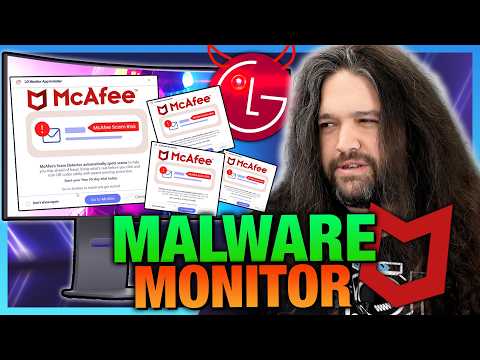
Smart TV surveillance is pervasive and growing: (1) ACR technology fingerprints content across all inputs including HDMI — LG was sued by Texas AG for secretly monitoring streaming, cable, and connected devices. (2) LG's 2025 "AI service terms" pop-up tells users they are responsible for obtaining consent from "any third parties whose voices may be captured" — effectively making the homeowner liable for wiretapping compliance. (3) Samsung and Roku hardcode fallback DNS (8.8.8.8) to bypass user-configured DNS. (4) Firmware updates have re-enabled tracking after users disabled it. (5) LG forced McAfee adware onto monitors via Windows Update (2026), and force-installed Microsoft Copilot on TV home screens (2025). (6) HDMI-CEC metadata can be used to track device usage patterns. (7) DNS blocking is the most resilient approach — it persists across firmware updates. (8) The cleanest solution is a commercial display + external media box, eliminating the smart platform entirely. Source: Gamers Nexus investigation (youtube.com/watch?v=Q9uefFYe6bM) — LG spyware in monitors and TVs, wiretapping concerns, Texas AG settlement.